Functions
The main task of the SCADA integration module is usually to:
•Collect changes in SCADA switch states and transfer them to the actual switch states in dpSpatial.
•Create operations for the changed switch states.
•In case of customer impact - create outages (unplanned operational disruptions).
•For planned operations - mark the planned row as executed.
In addition to this, the following may also be handled:
•Alarm from fault indicators (alarm on/off in a similar way to switch states).
•Retrieval of continuous values as:
|
This is an additional order. The values can be stored in a time series database, displayed in a map/schedule and used in short-term forecasts. Desired functionality is specified when ordering. |

ovoltages
ocurrents
oactive, reactive and apparent power
ophase angles and power factors
Functions tied to specific SCADA products
For some SCADA products, additional functions may be available.
•Retrieval of trip currents (currently Netcontrol Netcon 3000 with special configuration, similar development may also be possible for other products)
•Navigation from an object in the map/schematics to the corresponding screen in SCADA (Network Manager)
•Starting a program supplied by the SCADA provider (Netcontrol) to perform operations in SCADA (only works on selected clients, must be ordered, there is never any way to influence anything in SCADA using Digpro’s software)
Mapping of SCADA tags
Objects in dpPower are subscribed from SCADA by entering the corresponding SCADA tag in the SCADA ID field of the object.
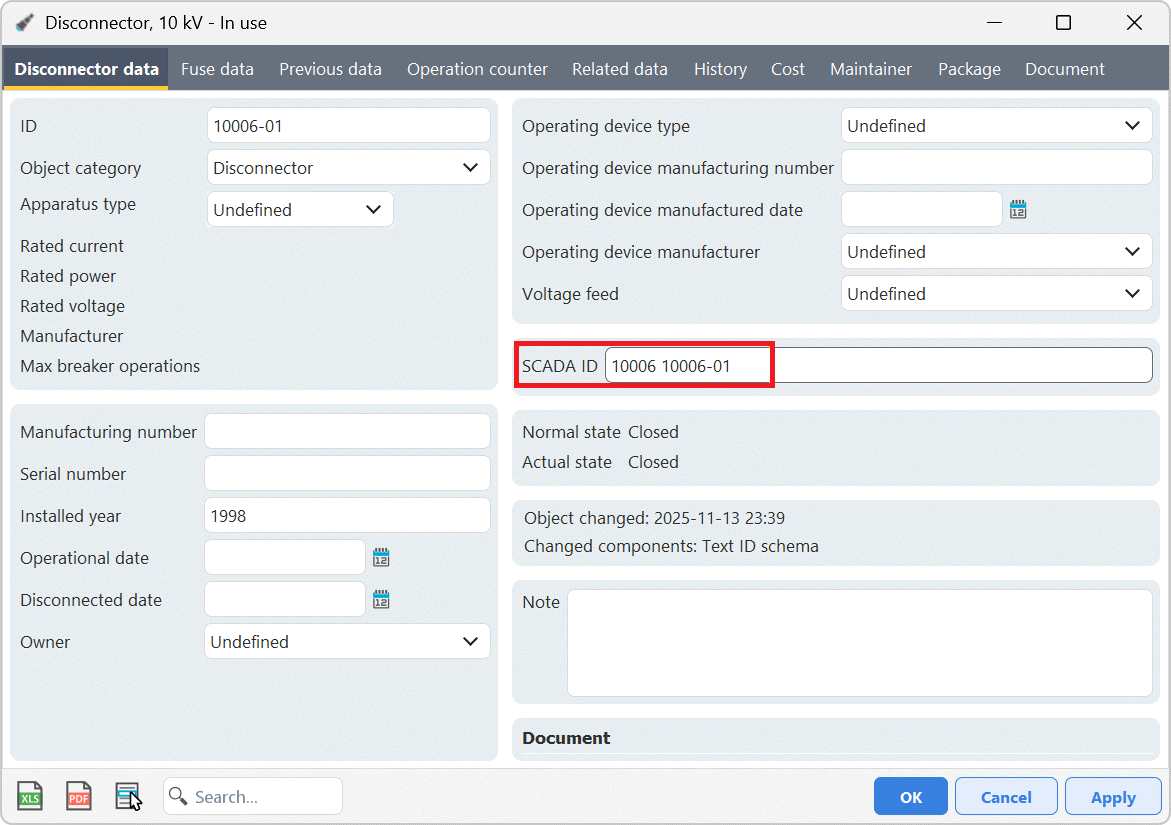
Depending on the configuration, the object starts to be subscribed after posting and is updated according to one of the following intervals:
•A maximum of 15 minutes
•A maximum of 60 minutes
•At the beginning of the next day
•On restart of the Conduxter service
The most common setting is 15 minutes, but longer intervals may occur to avoid the short interruptions in data communication that may occur at each update of the subscription list.
Mapping of two and three phase short circuit current sensors is a special case:
•Only available for Netcon 3000
•Requires special customization
Common prefix and suffix for the SCADA tags
If all SCADA tags within a certain category (e.g. switchgear or fault indicators) always start or end with the same text, this can be configured centrally in the system. Then the common part does not need to be entered in the SCADA ID field for each individual object.
Criteria for the planned rows to be tagged as executed
Slightly simplified:
Unplanned SCADA events create unplanned outages (in case of customer impact) or operations that do not belong to any outage (in case of no customer impact).
The event can be matched against an ongoing outage if:
•The event concerns a switch that has been operated during the outage previously.
•The event concerns a switch located in a part of the network affected by the same outage.
•The event reconnects customers affected by the outage.
•The event matches a planned operation with a scheduled time within two hours of the actual time.
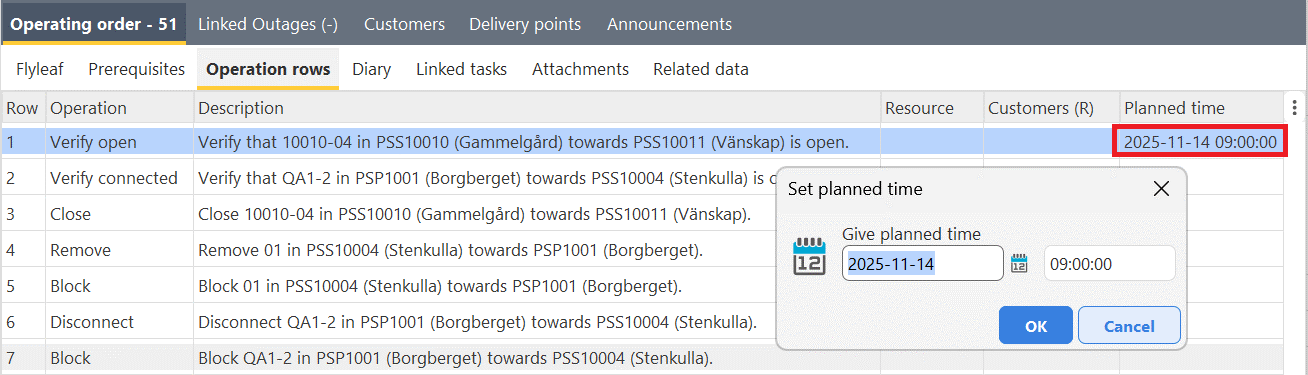
•For operating orders with special customer configuration (needs to be ordered): the timestamp falls within the time frame for work stages, switch times and/or customer outage times in the flyleaf.
•For regular outages, and often also operating orders: all previous rows of the switch order are executed.
•The operating order in question is in progress.
See section Appendix 1: Description of rules for handling SCADA events for more details on the matching rules.
If an event does not match the intended outage or operation
The matching between SCADA events and ongoing outages or planned operations is basically based on educated guesses. This means that errors can occur, sooner or later the system will misinterpret an event. This is usually because one of the conditions mentioned earlier is not met.
|
Do not undo an incorrectly matched SCADA event. If you do, dpPower may become out of sync with SCADA and the timestamp will be lost. Exceptions. |
Exceptions where undo may be justified:
•Errors in network documentation, for example SCADA tag is linked to wrong object.
•Incorrect SCADA event, e.g. unjustified retransmission of old event.
•Several incorrect events have stacked on top of each other and created a situation that cannot be resolved, in which case it may be necessary to perform the operations again manually in Operator. This should be completely avoided if the recommendations in this section are followed.
|
If dpPower and SCADA are suspected to be out of sync, see the section Synchronization between SCADA and dpPower. |
If the missed SCADA event is detected right away, it is easy to move it to the intended location. The scenario looks like this:
•A planned operation was not marked as completed due to one of the reasons above.
•Instead, a new, unwanted, outage was created with the single operation in the switch plan.
Here is how to correct it:
1.Right-click on the planned row and select Fetch operation from event list. Provided that the last operation is the only operation in the switch order, the operation is moved to the selected location and the unwanted outage is declared invalid.
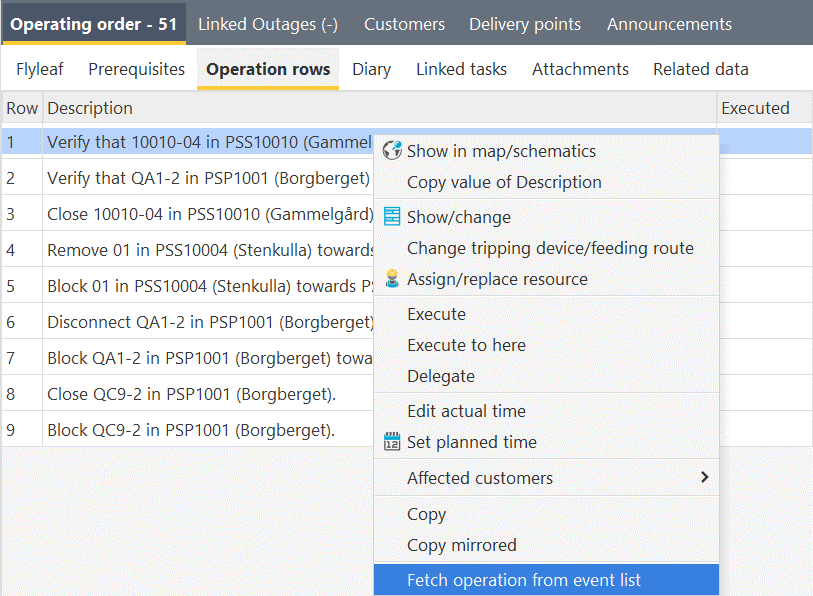
A more general approach, for more complicated situations, is to first move the operation to the event list and then move the operation to the intended outage or operating order.
Start by finding out where the event is located:
1.In the south panel, select the Events tab.
2.Uncheck Only unbound events.
3.If necessary, uncheck Hide invalid.
4.If necessary, limit the hits using the date fields. The current outage of the event is displayed.

Move the event:
1.Select the outage (or operating order) where the event is currently located.
2.Right-click on the operation and select Move to event list.
3.Open the outage or operating order to which the event should be moved.
4.If necessary, search for the event again in the event list.
5.Right-click on the operation and select Move to current outage.
|
If the switch order contains operations that came after the faulty event, you must first move them to the event list. Then move them back after the correct event is in place. |

Synchronization between SCADA and dpPower
It is possible at any time to synchronize dpPower's current switch states with what is in SCADA.
Restart the Conduxter service.
|
This may require access to a dedicated server in the DMZ or SCADA, but can be performed by local IT. |
No operations or outages are created during the synchronization. Restarting the service/synchronization is recommended as soon as there is a suspicion that the systems may be out of sync. See the system manual for details.
Block individual SCADA tags temporarily
It is common that some SCADA tags temporarily do not work. See the next section Individual Object Status for possible causes. When a tag does not match correctly between dpPower and SCADA, the system tries to re-establish contact at each SCADA tag update.
In most installations, this update occurs every 15 minutes (in some installations every hour). Each attempt to re-establish contact can cause brief disruptions in the handling of SCADA events - from a few seconds up to about a minute. It is therefore important to temporarily exclude faulty tags until the problem is resolved.
Block a SCADA tag temporarily:
1.Select Administration > Codelists > Table Manager for SCADA subscription. .
2.Add the tag in question to the list. The tag will be excluded from the next scheduled update of the subscription list, or after a restart of the service.
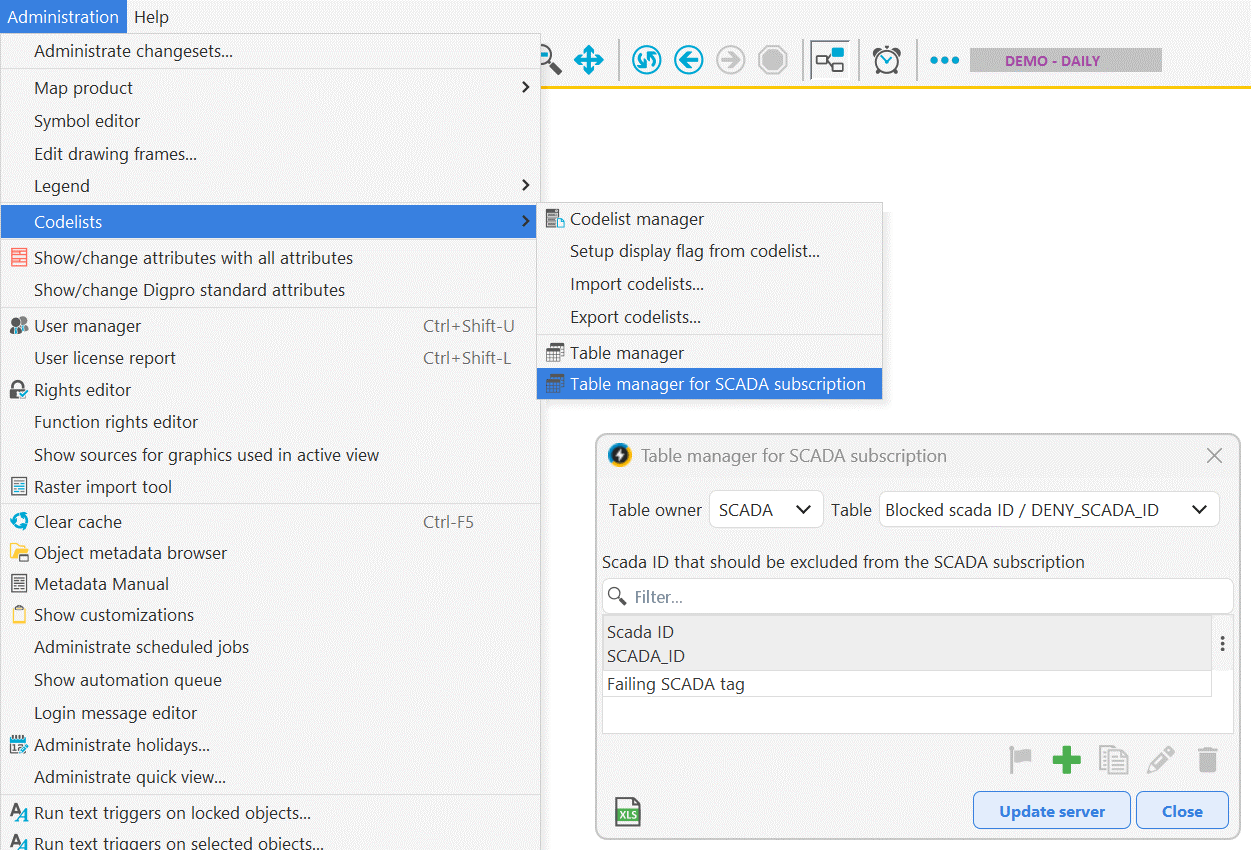
Interpreting the status icon and its messages
See section Operator status icons.
Status of individual objects
The query tool report Operator > SCADA item status is an effective way to investigate the status of individual devices.
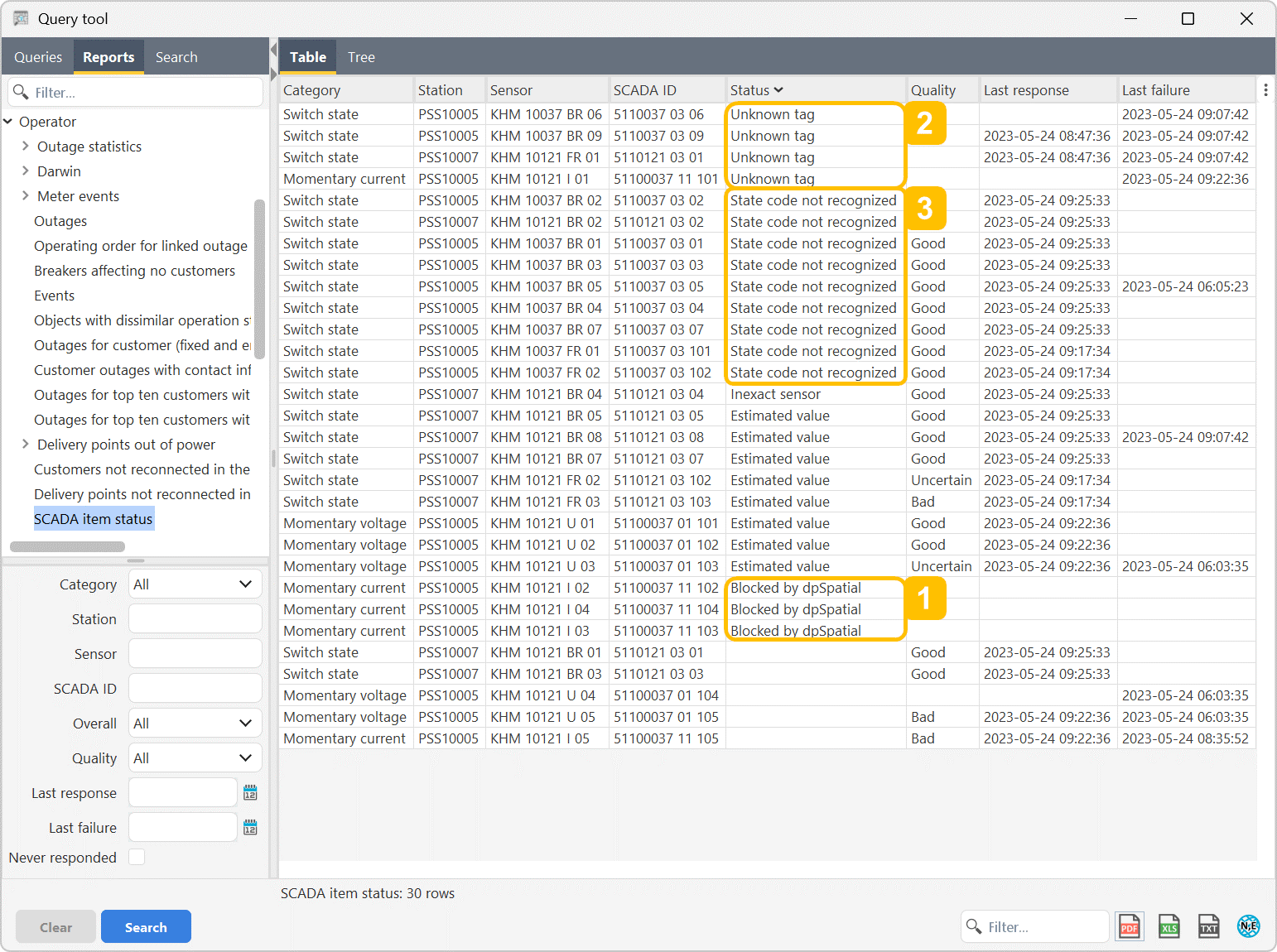
Results can be filtered by
•Category - Switches, fault indicators, and various types of sensors for measurement values.
|
Switch state, category 2 is a special category used for devices with deviating codes for open/closed; these occur in certain MicroSCADA installations and some other products. For Netcon 3000 and Network Manager this category is non-existent. |
•Station - Where the device is located - if any, i.e. not line devices.
•Sensor - The identity of the object in dpPower.
•SCADA ID - The actual tag.
•Overall - A cluster of similar circumstances, for example:
oCode for switch position that cannot be interpreted
oNon-matching SCADA ID.
oSensors not communicating.
oUnreliable readings.
•Quality - Of the reading - good, uncertain or bad.
•Latest response - First time the status changed for the sensor in question, the header will probably change.
Over 40 different statuses are handled, but there is no SCADA that returns all codes. The main error codes are:
•Communication failure - Error involving all sensors in SCADA.
•Blocked by dpSpatial - SCADA tag blocked according to the section Block individual SCADA tags temporarily.
•Not accepted by dpSpatial - SCADA ID has probably been deleted since subscription.
•Duplicate in dpSpatial - Two objects with the same SCADA ID and no distinguishing prefix or suffix.
•Invalid tag format - Some SCADAs seem to return this for SCADA tags that do not match.
•Unknown tag - The expected code for SCADA tags that do not match, variants may occur, see previous point.
•Reading inaccessible - No read permissions in SCADA.
•State code not recognized - The code for the switch position cannot be translated to either open or closed using the current configuration.
Basic troubleshooting
|
For more advanced troubleshooting, contact your local IT department, refer to the system manual or contact Digpro support. |
There are some simple checks you can do yourself to understand why a SCADA event was not processed as expected.
Search for the event in the Operator south panel:
1.Select the Events tab.
2.Uncheck Hide invalid.
3.Select a time range that covers the SCADA event in question.
4.Press Search. The SCADA event may appear in the search results.
Use the query tool:
1.In the query tool, Reports tab, select Operator > SCADA Events.
2.Enter an appropriate time range and possibly more search criteria and press Search.
There you can see more details in the Status column, for example:
•Device already in the requested state.
•SCADA ID is deleted.
•Reason why a certain matching criterion was not met.
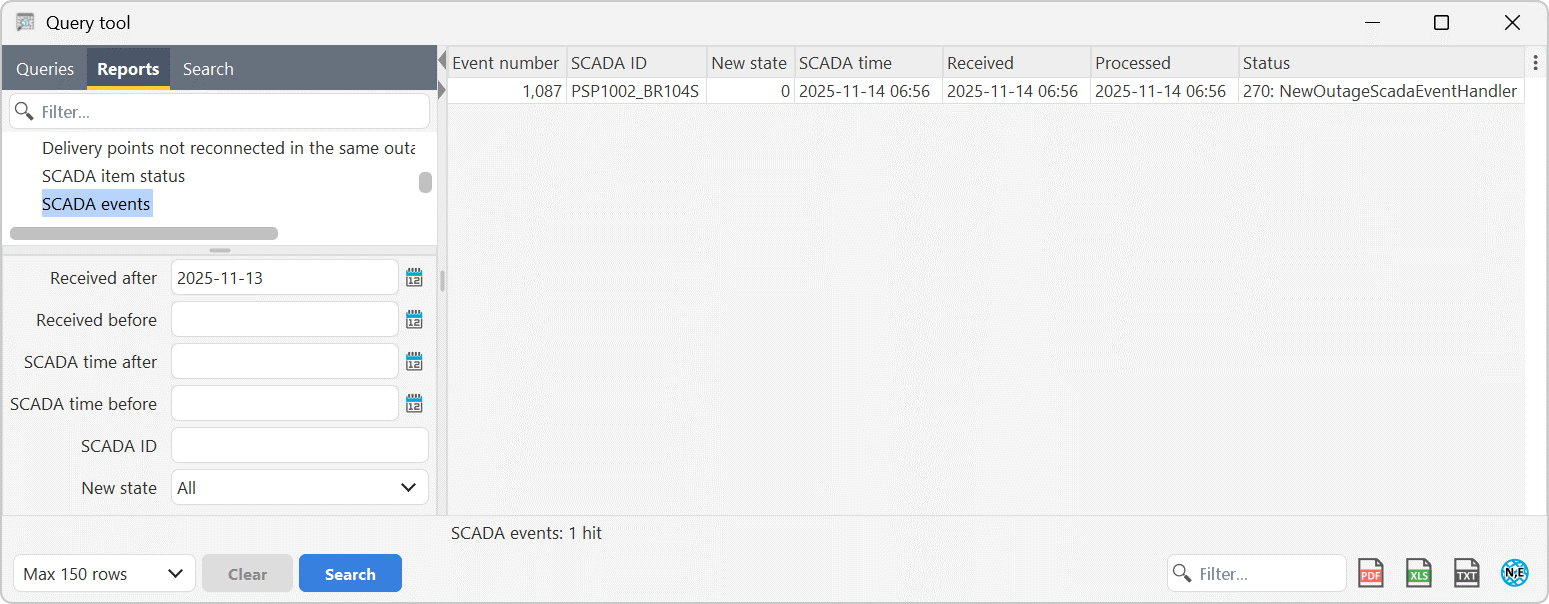
If the SCADA dispatch has completely stopped, this should be indicated by the missing timestamp in the Received and Processed columns.