This section describes how to create, calculate, and analyse a long-term planning scenario.
Create a Scenario case
The scenario case acts as a container for all assumptions about future demand growth.
1.Select Analyzer > Long term planning > Scenario case editor.
2.In the Scenario cases tab section Scenario cases, press Add scenario case  .
.
3.Enter a name and description and press OK.
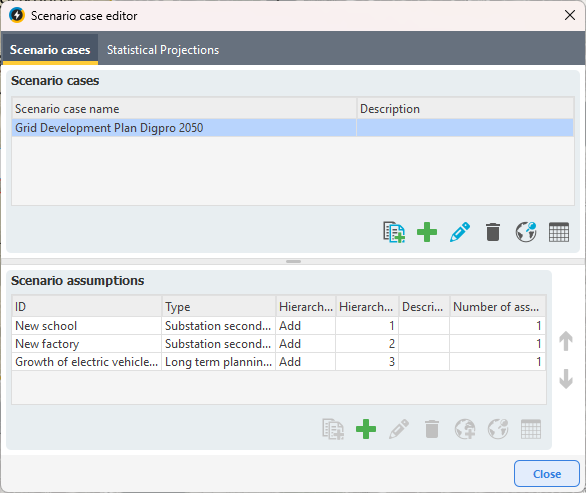
Example of added scenario in the scenario case editor
Add a Scenario assumption
1.Select a scenario case.
2.In the Scenario assumptions section, press Add scenario assumption .
3.Link the assumption to a planning area or network object, for example a primary substation.
|
If you want to change the linked object, select the assumption and press Link scenario assumption to object in map |

 and select the desired object.
|
The linked object defines where in the network the demand growth will be applied. Each scenario assumption is edited in a separate form where you define how demand should grow, see section Define demand growth below. |

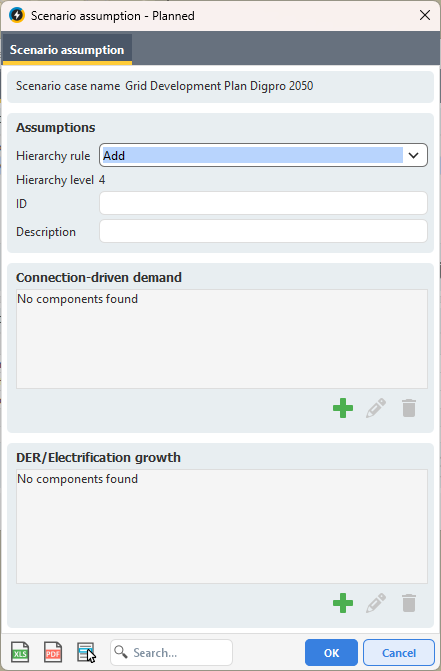
The scenario assumption dialog
Define demand growth
Within a scenario assumption, you define demand growth using one or both of the following:
Connection-driven demand
1.In the scenario assumption, section Connection-driven demand, press .
2.Select a Load type.
|
The system calculates the resulting peak load automatically based on the selected load type. |
3.Enter the Value in the unit defined by the load type.
4.Define probability factors (High / Expected / Low).
5.Define Start date and, optionally, End date.
6.Press OK.
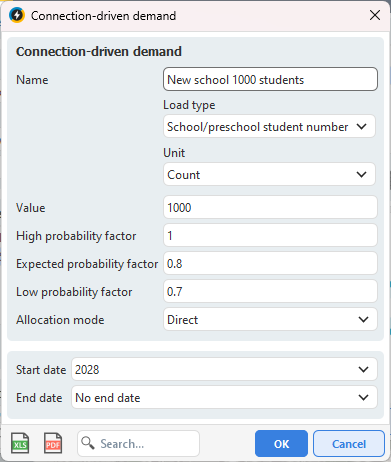
Example of connection-driven demand
Electrification growth (DER)
1.In the scenario assumption, section DER/Electrification growth, press .
2.Select Area load calculation type, for example EV chargers.
3.Select Load type.
4.Press Link projection.
|
If no suitable projection exists, see section Create and link statistical projections below. |
5.Select a statistical projection and press OK.
6.Press OK.
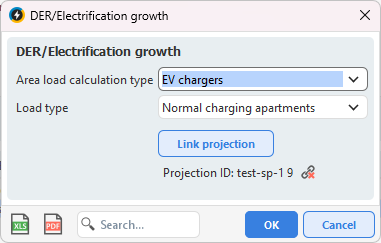
Example of electrification growth (DER)
Create and link statistical projections
Statistical projections can be reused across multiple scenario cases.
If no suitable projection exists:
1.Select Analyzer > Long term planning > Scenario case editor.
2.Select the Statistical projections tab.
3.Press Import statistical projections from CSV file  .
.
4.Select CSV file and press Open.
|
You can also add statistical projections manually: 1.Press Add statistical projection 2.Enter data such as ID, Municipality, Data category, Agreement area and more. 3.In the Yearly time series section , press |
5.Press OK.
6.Return to the scenario assumption and link the projection.
Copy scenarios and assumptions
To streamline your work, you can copy both entire scenarios and individual scenario assumptions.
Copy scenario
When you copy a scenario, a complete copy is created, including:
•All scenario assumptions.
•Links to objects in the map.
•Links to statistical projections.
1.Select Analyzer > Long term planning > Scenario case editor.
2.In the Scenario cases tab section Scenario cases, press Copy scenario case  . A copy is added to the bottom of the list of scenarios.
Copy scenario assumptions
You can also copy one or more scenario assumptions to the same or another scenario.
1.Select Analyzer > Long term planning > Scenario case editor.
2.In the Scenario cases tab section Scenario assumptions, press Copy assumptions .
3.Select the scenario you want to copy the assumption to and press OK. A copy of the assumption is added to the selected scenario.
|
The link to objects is not included when copying scenario assumptions. After copying: 1.Select the copied scenario assumption. 2.Press Link scenario assumption to object in map |