An Catching intermediate event is used to represent something that occurs during the execution of a process. When the event occurs, the process continues. In BPMN there are several types of intermediate events:
•Message  - Define a message for the event. Enter the ID for the desired message.
|
If the process is linked to a workflow where documents are sent for signing via Scrive, a message can be used to trigger the intermediate event when the signing is completed. Use the message ID DP_DOCUMENT_SIGNED for the event to react to a document being signed. Once the document is signed via Scrive, the message is automatically sent to the process. For the process to react to the message, it needs to be in the intermediate event at the time of signing. If this is the case, the process automatically continues from the event. |

|
In the fields Estimated duration, days and hours, you specify how long the message event should last. When the process is linked to a task in Organizer, the specified time will be displayed as the event's start and end time. The start time is determined when the process reaches the event, and the countdown begins based on the time you have entered. The end time is calculated from this time span. |
•Add duration  - Define a duration from when the event is activated. When the process reaches the event, it will be activated and start counting down to the time you have set.
•Add date - Define a specific date for the event.
•Add weekday - Define a specific date for the event based on week.
1.In the Create tab, select Catching intermediate event and press Place object or double-click. A dialog opens.
2.Optionally, set a Name and Description.
3.Press the icon for the type of event definition you want to add.
|
You can add multiple messages and times to the event. The Parallel box is used when there are multiple event definitions. If the box is checked, the process waits until all event definitions have occurred before continuing. If it is not checked, it is sufficient that one of the event definitions occurs. |

4.Press OK to create the event.
5.Place the intermediate event in the process illustration.
Scenario:
An offer needs to be signed by the customer before installation consent can be given.
•After the offer is sent for signing via Scrive, the process should pause and wait for signing.
•Once the customer has signed the document, the process should continue automatically to the next step.
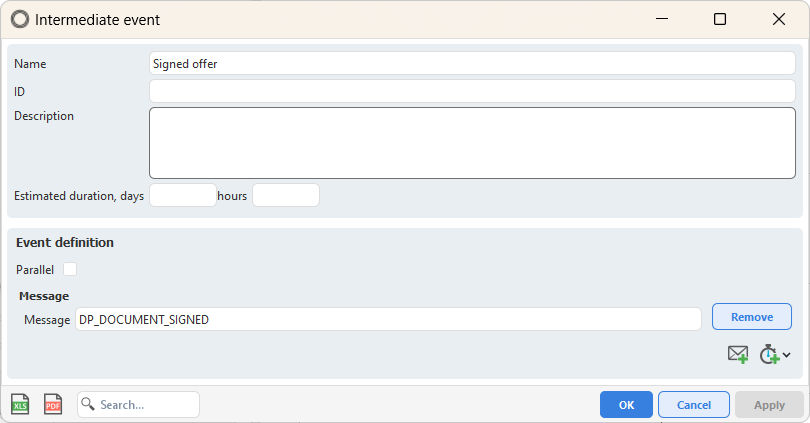
Intermediate event with message ID DP_DOCUMENT_SIGNED
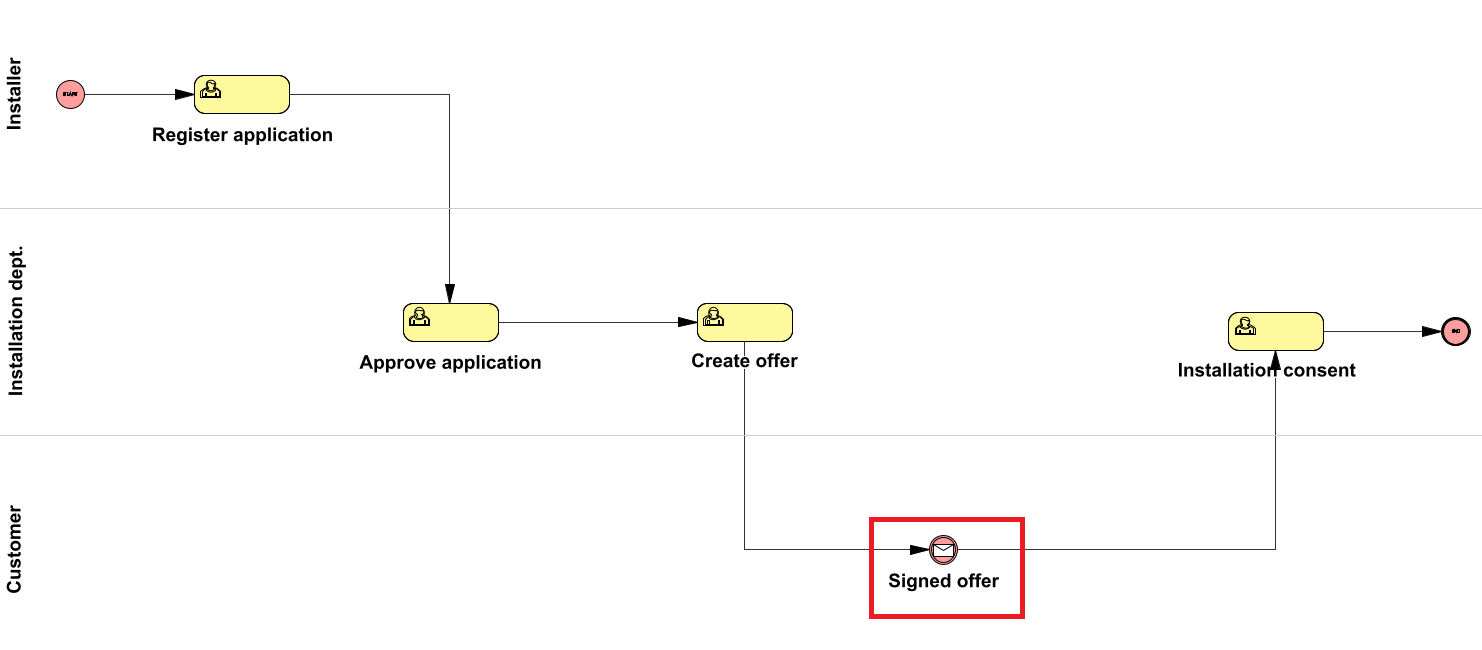
Example of an application process with an intermediate event with message ID DP_DOCUMENT_SIGNED
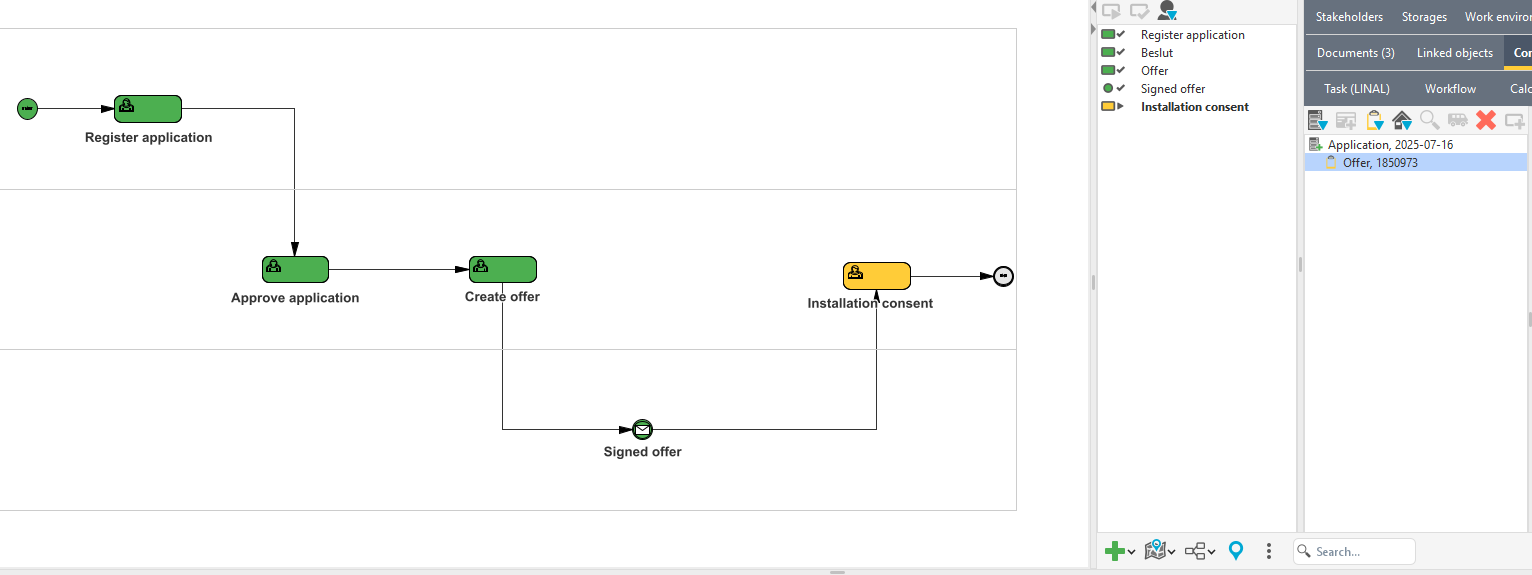
The same process visualized in Organizer after mapping to a task template. The user tasks Register application, Approve application and Create offer have been completed and finished manually. In Create offer, an offer was sent for signing via Scrive. When the customer signed the document, the intermediate event with message ID DP_DOCUMENT_SIGNED was automatically triggered, allowing the process to continue to Installation Consent.