Operator can be combined with Organizer to create and link tasks to outages and operating orders. Tasks can be created automatically when an outage is detected or manually by the user. The function can be used both in the office client and together with dpWebmap - Operator.
Create Organizer tasks automatically in case of disruption
It is possible to configure the system so that an Organizer task is automatically created when a new outage is detected.
The creation of the task can be triggered by:
•SCADA alarms
•Meter alarm
•Fault reports from customer
This function is particularly useful in combination with dpWebmap - Operator, where tasks can be managed directly in the field.
For tasks to be created automatically, it is required that:
•A task template is created in Organizer.
•The task templates contain activities with the labels:
oOPERATOR_VISIBLE and/or
oOWM_LAYOUT_OPERATOR if the task is to be displayed in dpWebmap - Operator.
In Operator preferences, you can select which task template to use for new outages.
1.Select Operator > Operator preferences.
2.Select the Shared preferences tab, sub-tab Organizer.
3.Check which types of outages should create an Organizer task.
4.Select the desired task template from the drop-down list and press OK.
Create task template
If the task template to be used are not listed in Operator preferences, it must first be created and configured as described below.
1.In the menu bar, select Organizer > Show administration.
2.In the south panel, select the Task Templates tab.
3.Press Create new task template  and select the desired template type.
4.Fill in the required details.
5.In the Workflow tab, fill in the desired activities and press OK.
6.In the menu bar, select Organizer > Administrate links (activity/label).
7.In the Activity types section, select your added activities.
8.In the Labels section, mark OPERATOR_VISIBLE and/or OWM_LAYOUT_OPERATOR.
|
Mark OWM_LAYOUT_OPERATOR if the task should be visible in dpWebmap - Operator. |

9.Press  to link the activities.
10.Press OK.
Link disruptions to a new or existing task manually
You can link an outage or operating order directly to a task in Organizer without having to switch views.
The task is added to the outage’s Linked tasks tab in the east panel, and the outage is added to the task’s Linked objects tab in the east panel.
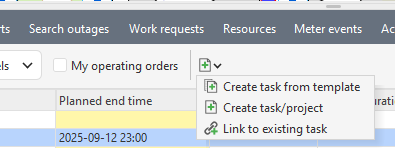
Link to existing task:
1.Select an outage or an operating order.
2.Press  or right-click and select Link to existing task.
3.Enter the desired search parameters and press Search.
4.Select the task you want to link to and press OK.
Link to new task:
1.Select an outage or an operating order.
2.Press or right-click and select:
oCreate task from template - A list of the task templates that use the Template type - Operator is displayed.
a.Select the desired template and press Create. The task opens in a separate window.
b.Press OK to save the task.
oCreate task/project - Create a task based on any task template.
a.Enter the desired settings for the task and press Create.