Create a general area to publish geographically defined information in Outage Map that is not related to an outage. This could include, for example, information about roadwork, a helicopter inspection, or line clearance.
1.In the sidebar, select the Place object tab.
2.Select Outage Map > General area.
3.Press Place object.
4.Fill in the details for the area and press OK.
|
Check the Published option if you want the network boundary to appear in Outage Map. |

|
The time entries are information displayed in Outage Map. They do not automatically publish or depublish the area. |

5.Place the area as a polygon on the map.
|
You can use the geometry from another map object, such as a work area for a task in Organizer: 1.Right-click on the map where you want to place the polygon and select Copy existing geometry. 2.Select the polygon on the map that you want to use. The geometry is copied to the general area. |
|
A published area appears as a blue polygon with an information icon in Outage Map. |
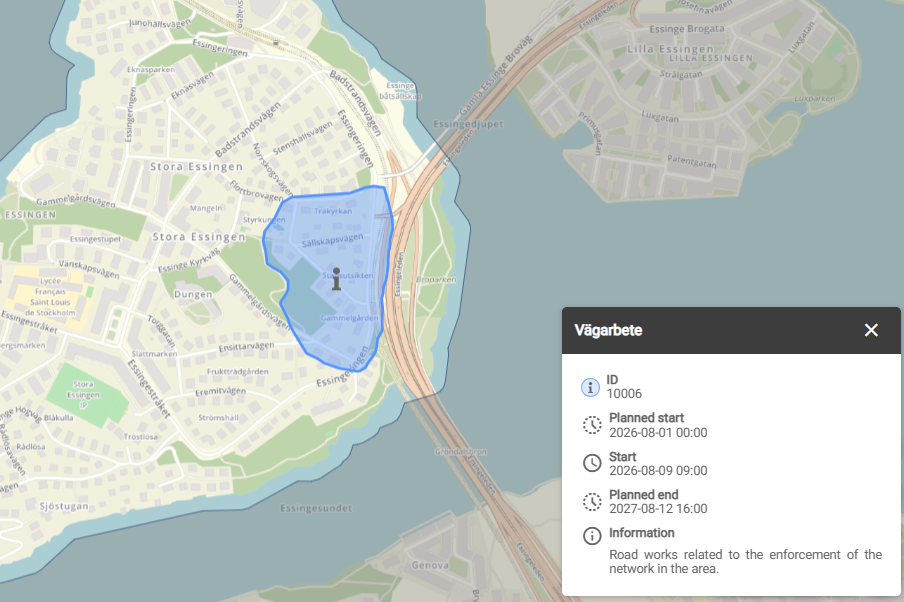
Example of a marked general area in Outage Map