Data-driven processes allow you to control how data is used and flows through a process. By defining data stores, data objects and data associations, you can create workflows that adapt dynamically based on available data.
For example, you can use data components to:
•Retrieve objects that are linked to a task in Organizer.
•Assign objects to multiple instances of a sub-process.
•Control which objects are handled in different process tasks.
•Pass data between sub-processes and user tasks.
The following data components can be used:
•Data store - Specifies where data is retrieved from, for example, objects linked to a task in Organizer. The data store is available outside the process.
•Data object - Temporarily represents data used in the process.
•Data association - Links data between different objects in the process.
•Data input - Represents data received in a sub-process or user task.
•Data input association - Associates input data with the activity that will use it.
Scenario - Modeling a meter replacement process
In this scenario, a process is created for a typical meter replacement job. The process contains workflow items to Plan, Execute the Meter job, and Follow-up. The Meter job is placed in a sub-process that is started once for each meter linked to the task.
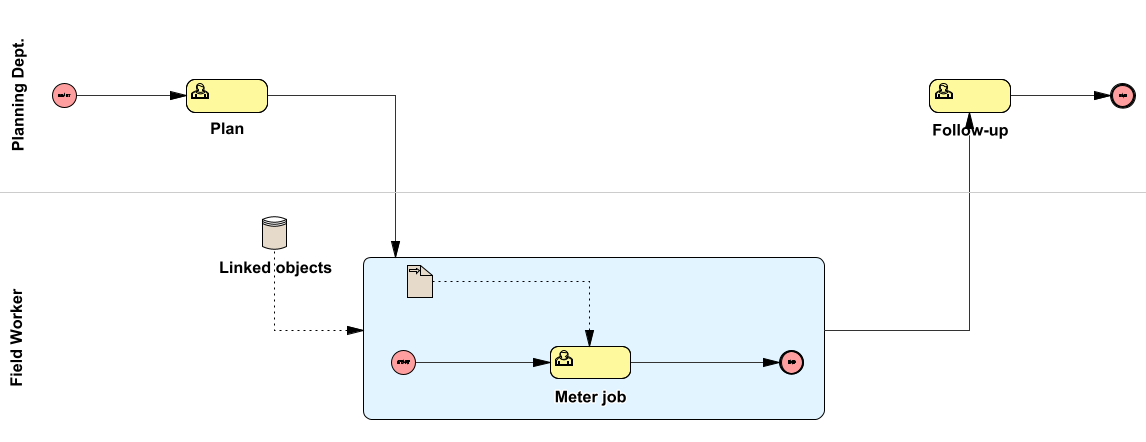
1.Create a process for meter replacement.
2.Place a Sub-process in the process, check the box for Multiple instances.
3.Place a User task in the sub-process representing the meter replacement itself, in the Activity field, enter Meter job.
4.In the main process, place a Data store.
a.Enter Name, for example Linked objects.
b.In Type definition for the data store  , select Objects linked to the task.
5.In the sub-process, place Data input.
a.Enter Name, for example Meter.
b.In the Type definition for the data input , select Object list and check Collection.
6.Place a Data association from Data store to the Sub-process.
a.Double-click Data association, in the Data transformer field, select Object type filter.
b.In Edit data transformer parameters , select Meter as the allowed object type.
7.Place a Data input association from Data input to the sub-process User task.
8.Link the data to the sub-process User task:
a.Double-click the User task in the subprocess and select the Data input and output tab.
b.Select the row under Data object.
c.In Type definition for input data , select Meter - Replacement.
9.Publish the process, see section Validate and publish a process.
10.Map the process, see section Map a process to a task template.
When the process is linked to a task in Organizer, the meters are retrieved from the linked objects of the task. If 10 meters are linked to the task, 10 instances of the sub-process are created, one for each meter.