My notifications is a notification center where you can view and manage events related to your work in the system. Notifications are displayed directly in the application and function as a complement to email. When you receive a new notification, a red indicator is shown on the toolbar icon.
Notifications are updated automatically at regular intervals (approximately every two minutes), which means new notifications may not appear immediately and can be slightly delayed. The notification center only displays notifications for the current user. Notifications are stored for a limited time and are then automatically removed. If you perform an action yourself, you will normally not receive a notification for it.
Types of notifications
Notifications are created when important events occur in the system. Additional types of notifications may be added in future versions. The notifications currently supported in the system are described below.
General
•When a changeset is sent to you.
Organizer
Notifications are sent for the same types of events that normally generate emails from Organizer, such as when tasks or activities are assigned to you, when important status changes occur, or when documents and messages are added. The notifications you receive depend on your role and your connections to tasks, activities, or other items in Organizer.
Manage notifications
1.Select Tools > My notifications, or press the My notifications icon  in the toolbar.
|
From the menu bar, the notification center opens as a movable dialog. From the toolbar, it opens as a popup window on the right side of the main window. The popup closes if you select something outside it. |

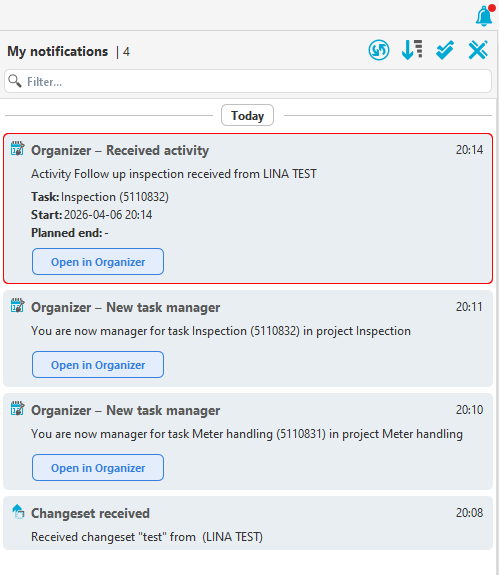
2.Notifications are displayed in a list with the most recent at the top. Here you can:
oDismiss a single notification - Press the cross in the upper-right corner of the notification you want to dismiss.
oDismiss all  .
.
oToggle sort order  - The default is newest notifications on top of the list.
oMark all as read  - All notifications are automatically marked as read when you close the notification center.
oFor Organizer notifications - Press Open in Organizer to open the relevant task and/or activity.
|
If you don't want to display the My notifications icon in the toolbar, you can hide it via Settings > Preferences. In the Toolbar tab, under the Miscellaneous section, uncheck My notifications. |
